Give Agentic Powers to Your Visual Studio Code
Its "agentttttt" at your command!

Onceee a goooood gamer said, :D sigh , no gamer said nothing, let’s get cracking!!To set the mood, we’re diving into Agent Mode in Visual Studio Code and firing up a prompt. Imagine grabbing a Super Mario power-up, your jumps go 3x higher, mushrooms are optional, and suddenly your coding tasks feel faster, smarter, and way more fun.
Agent Mode Introduction:
Agent Mode in VS Code enhances typical chat completions by autonomously executing tasks like installing packages, modifying files, and running commands. ( Would you trust me if I could say that it can read and edit and push nearly 100 files at a time ) easily with a push of a button.
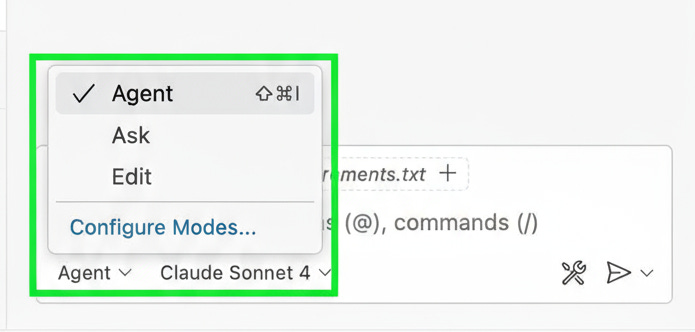
Turning on Agent Mode: Enabled in user settings under the “agent” option in the chat sidebar.
Three Chat Modes:
Ask: Basic chat interaction returning answers.
Edit: Allows VS Code to create and modify files based on prompts.
Agent: Autonomous multi-step actions, including running terminal commands with user approval.
Minimal Usecase: Just wanted to show a minimal usecase, like creating a file, adding content to it and creating addtional files , organising folders and even deleting a file.
Quick Tip: You can also drag and drop files to the chat and agent will perform action on it.
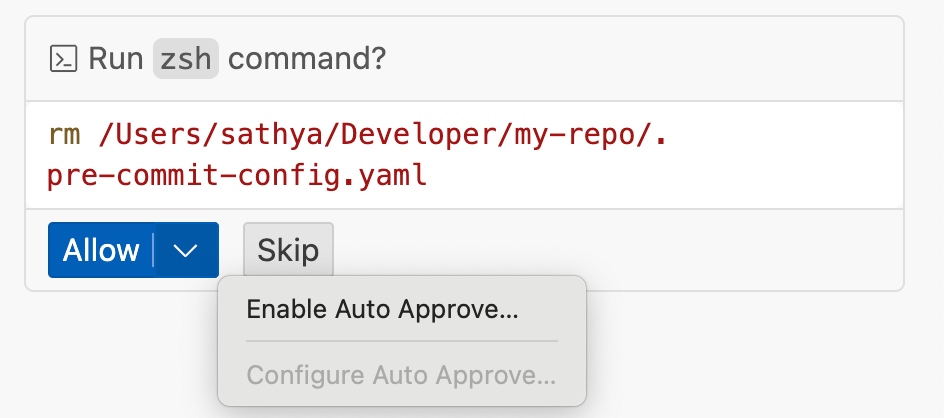
Important: You can either auto-approve all commands or approve each command individually. Auto-approve is like going on a hard mode — exciting but risky.
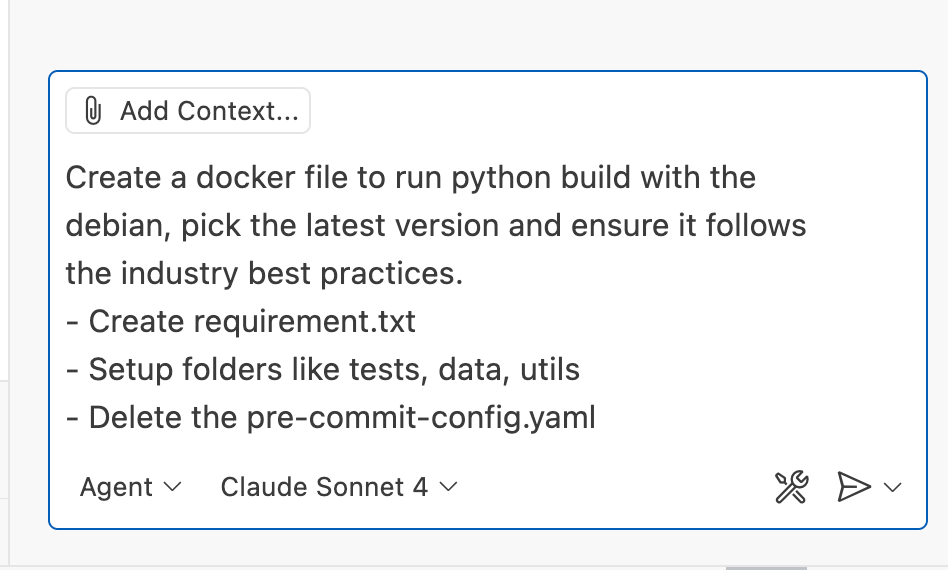
Let fire this up with a prompt! But hold on.. .
Few things to keep in mind!
The agent will first try to remove the file as mentioned, and you can either enable Auto Approve or validate each command and allow it as you like.
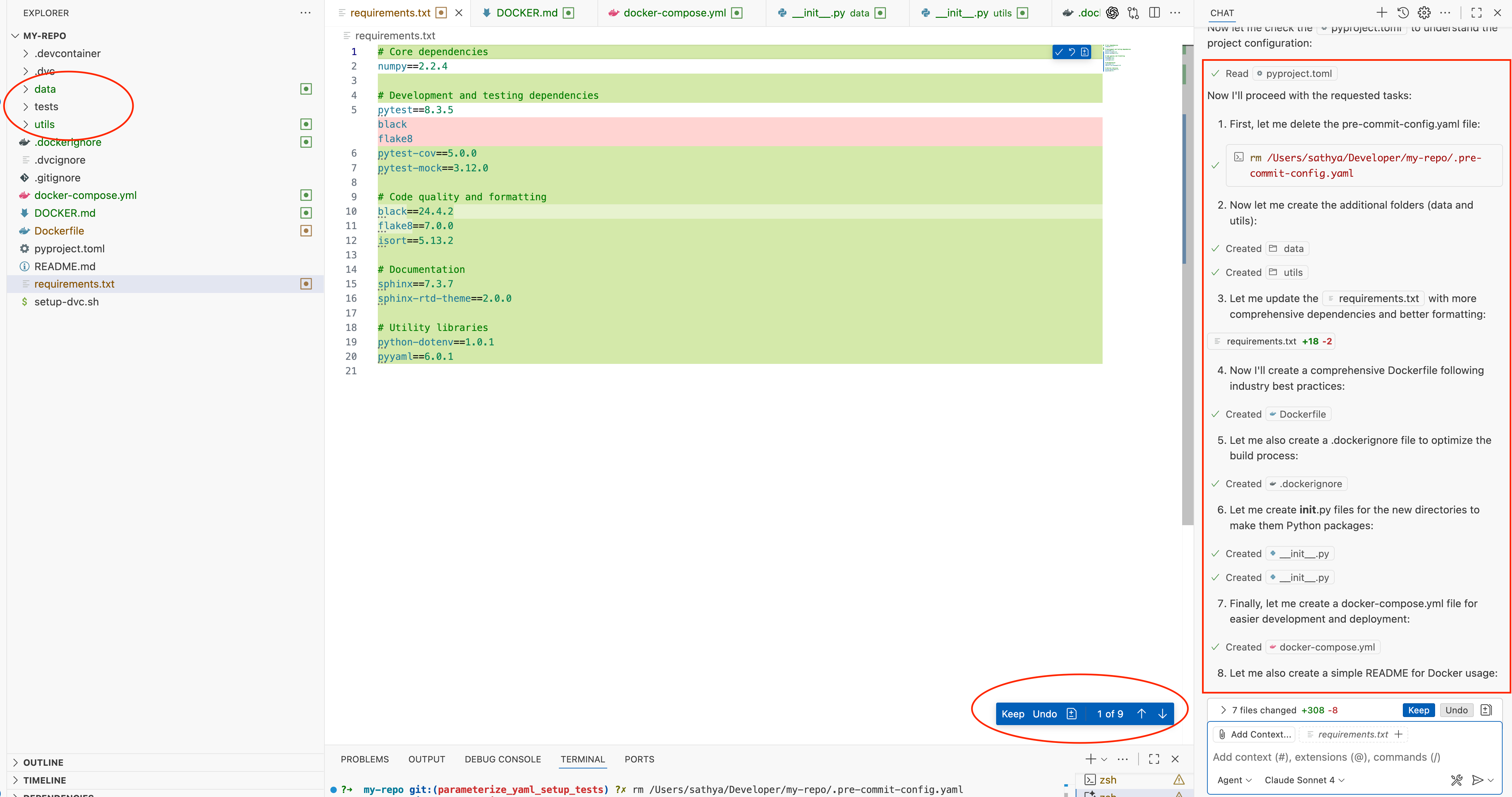
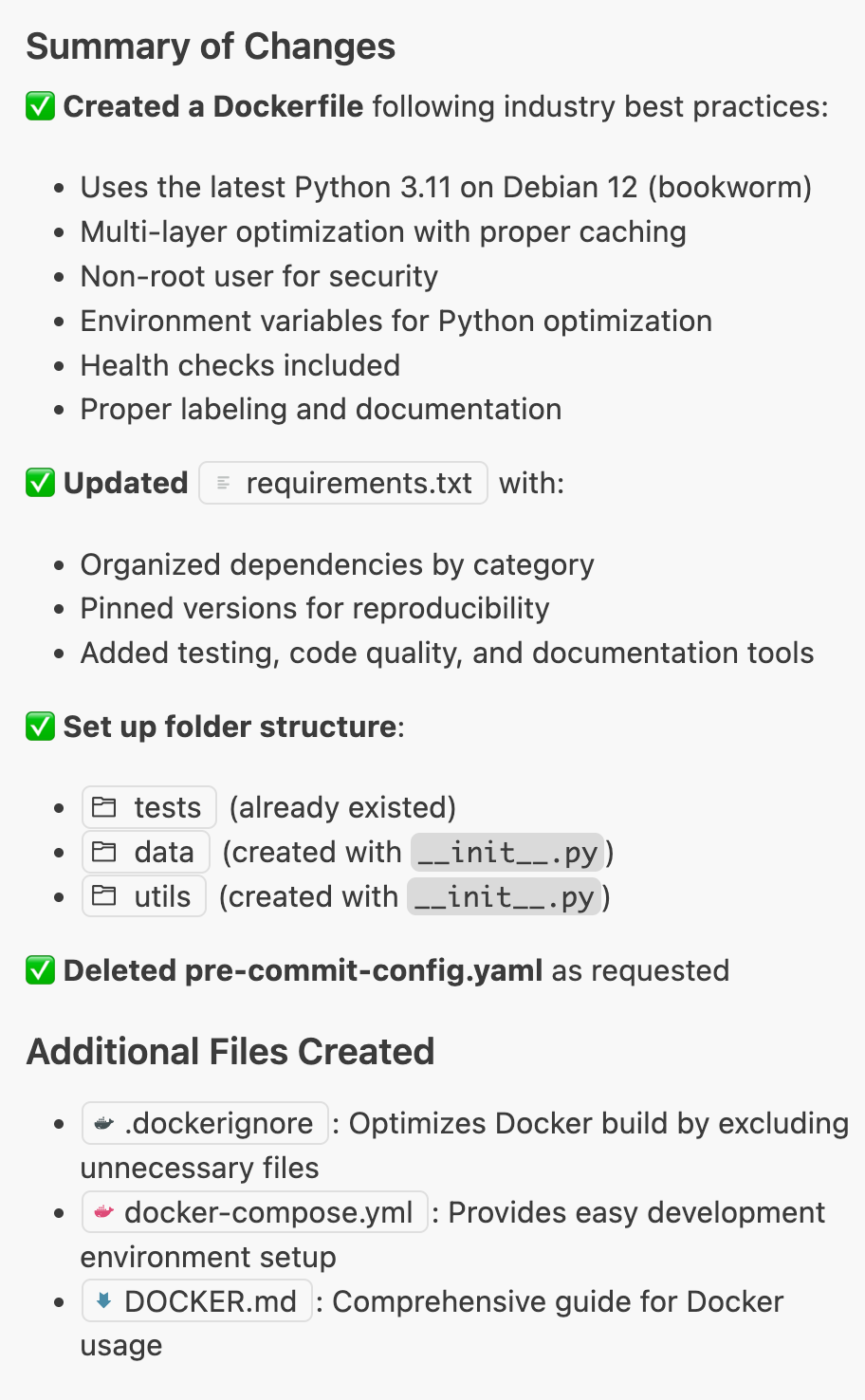
Finally, it has finished the task and provides a summary, as shown in the screenshot below. You can see the folder being created, the requirement text modified, and the Dockerfile also generated.
Capabilities of the Agent
File & Directory Management: Create, read, edit, move, and list files/folders.
Code Search & Analysis: Perform semantic and regex searches, find code references, analyze code dependencies.
Python Development: Configure environments, install packages, run code snippets, refactor code, validate syntax.
Project Setup: Scaffold complete projects, install extensions, run build tasks.
Terminal & Command Execution: Run shell commands, execute background processes, fetch terminal output.
Testing: Run unit tests, validate code changes with test results.
Git & Version Control: Run git commands, track changes, view diffs.
Web & Documentation: Fetch web pages, search GitHub repos, access API docs.
Error Detection & Debugging: Get lint/compile errors, syntax validation, code quality checks.
Configuration & Optimization: Manage environments, linting, formatting, Docker, dependencies.
And that’s just the beginning of what your Agent can do! Think of it like unlocking a secret level every command, every automation, every tweak is a new power-up in your coding adventure.
Gear up, experiment, and see how far your Agent can take you. Game on!
Will continue exploring more capabilities in the Part #2